

Last updated: October 19, 2026
You come up out of a Seoul subway station, open Google Maps, and ask for walking directions to the cafe you saved back home. Instead of a route, you get a message that it can’t find one, or a straight dotted line drawn through a block of buildings. That’s the moment most first-time visitors download Naver Map, and it’s why learning how to use Naver Map in English is worth ten minutes before your flight.
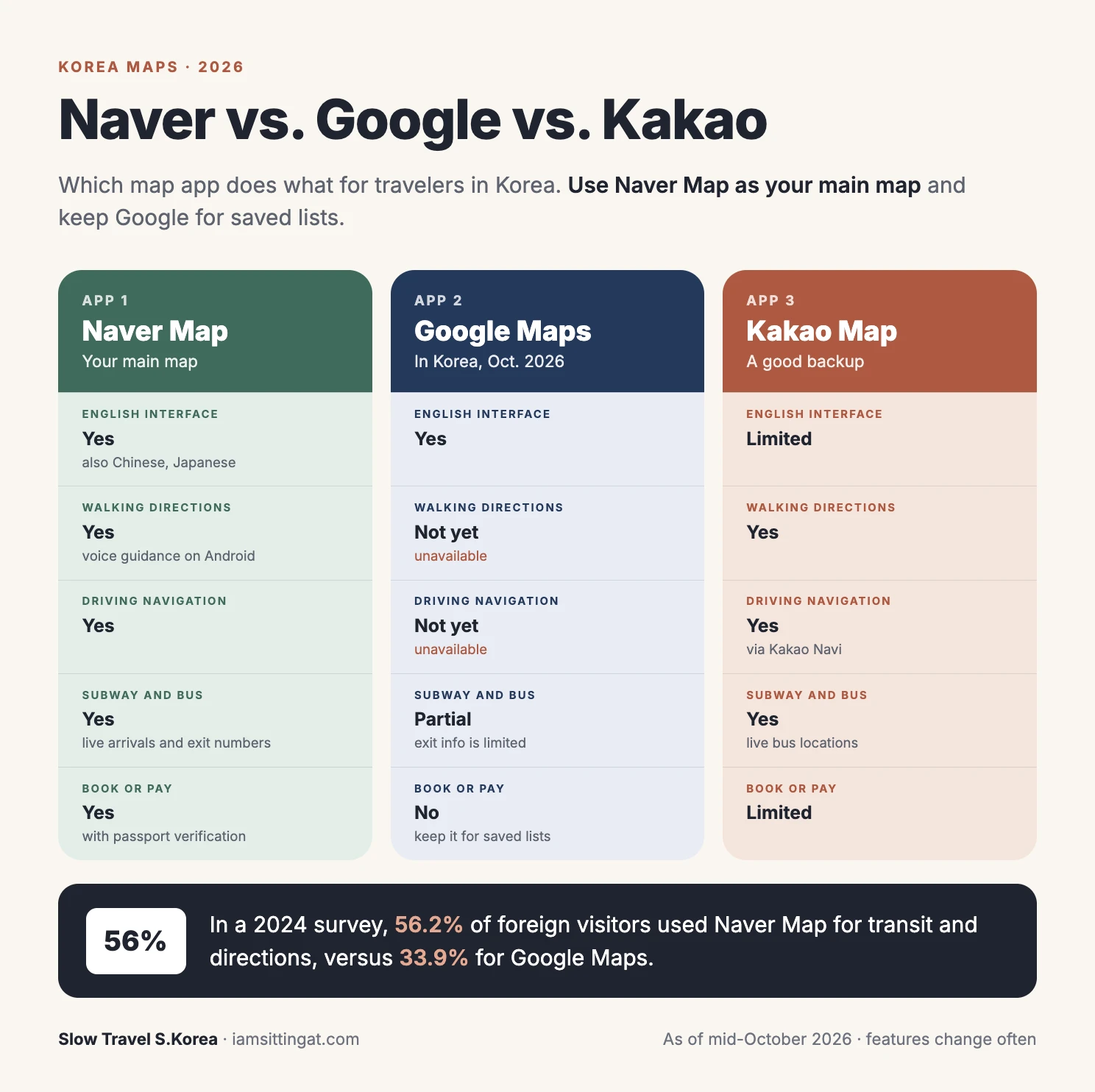
You wouldn’t be alone. In a 2024 survey of foreign visitors cited by the Korean press, 56.2% said they used Naver Map for transit and directions, compared with 33.9% for Google Maps.
When I go back to Korea, Naver Map is the first app I open, the same way most Koreans do. It’s not a tourist app. It’s the map the whole country runs on, which is exactly why it works so well and also why a few parts of it still assume you read Korean. This guide covers both.
Quick Answer: How to Use Naver Map in English
- Download “NAVER Map, Navigation” from the App Store or Google Play before you fly. You don’t need an account to search or get directions.
- The app follows your phone’s language. If your phone is set to English, Naver Map usually opens in English. You can also change it in the app’s settings.
- Search in English for big places (Gyeongbokgung, Myeongdong Station, Lotte World). Paste the Korean name for small ones (a neighborhood bakery, a specific restaurant).
- Use the transit tab for Naver Map subway directions. It shows which line, which direction, how many stops, live arrival times, and which exit to use.
- Walking directions work, Google’s still don’t. Naver added real-time voice guidance for walking in June 2026, starting on Android.
- Booking and paying in the app now works for foreign visitors without a Korean phone number, through passport verification introduced in June 2026.
- Keep Google Maps for saved lists from home and for reading English reviews, but don’t rely on it to get you there.
Why Google Maps Doesn’t Work Well in Korea (Yet)
This surprises almost every American I talk to, so it’s worth a minute.
Korea restricts the export of detailed map data to servers outside the country. Google processes route calculations in its global data centers, so for years it couldn’t offer turn-by-turn driving or walking directions in South Korea. Transit directions work partly, but the walk to and from the station is often a rough line rather than a real path. Google asked for permission in 2007, 2016, and again in 2025.
On February 27, 2026, the Korean government conditionally approved Google’s request to export 1:5,000-scale map data, with conditions that include blurring military and security sites. Google welcomed the decision and said it would work out how to implement the service.
As of mid-October 2026, Korean reporting and community trackers still list walking and driving directions in Google Maps as unavailable in Korea. When that changes, I’ll update this post. Even then, Naver Map will likely stay ahead on the things that matter for a visitor: Korean place data, live transit, and reviews from Korean locals.
How to Use Naver Map in English, Step by Step
1. Download the right app
Search for NAVER Map in your app store. The developer is NAVER Corp. Naver’s main search app (“NAVER”) is a separate app; you only need the map.
Do this at home on Wi-Fi. You’ll want it working the moment you land, along with your data plan. See Best eSIM for Korea.
2. Switch the language to English
Naver Map has offered English, Chinese, and Japanese versions since 2018, and it picks a language based on your phone’s settings. If your phone is in English, the app should open in English.
If it doesn’t, or you want to switch:
- Tap the menu icon (your profile or the three lines in the corner).
- Open Settings.
- Find Language and choose English.
What changes: menus, buttons, station names, transit instructions, and most place details. Since 2024, Naver also translates visitor reviews and review filters into English using its Papago translation engine. What doesn’t always change: menus photographed on a wall, some business names, and posts written by shop owners. Go to Naver’s Map Customer Center.
3. Turn on location access
Allow location “While Using the App.” Without it, Naver Map can’t show where you are or start walking guidance. If you’re worried about battery, this is the one permission to keep on and the one reason to pack a portable charger.
4. Skip the account for now
You can search, view places, and get every kind of direction without logging in. An account only matters if you want to save places to lists or book and pay inside the app. More on that below.
How to Search for Places in Naver Map (the Part That Trips People Up)
Search is where most visitors get frustrated, and it’s almost always a language mismatch, not a broken app.
Big landmarks and stations: English works. Type “Gyeongbokgung,” “Hongik University Station,” or “Starfield Library,” and Naver will find them. Station names are reliably translated, so “Myeongdong Station” is a dependable starting point.
Small places: use Korean. The bakery an Instagram post mentioned, a specific branch of a chain, or a restaurant with no English sign may not show up under an English spelling. Korean romanization is inconsistent, so the same place can be spelled three ways online. The fix:
- Copy the Korean name from the blog post, social media post, or booking confirmation, and paste it into the search bar.
- Use the Korean address if you have one. Korea has both road-name addresses and older lot-number addresses, and Naver accepts either.
- Translate first if all you have is an English description. Papago or another translator can give you the Korean name to paste in.
Check the neighborhood before you go. Chains have dozens of branches. When you tap a result, look at the district name (Mapo-gu, Jongno-gu, Gangnam-gu) and the pin on the map before you start directions.
Save places as you go. If you do log in, tap the star or bookmark icon to save places to a list. It’s the Naver version of the “Want to go” list you probably keep in Google Maps.
Naver Map Subway Directions, Explained
This is where Naver Map earns its place on your home screen. Here’s how to get Naver Map subway directions and read them without second-guessing.
Getting a route
- Search for your destination and tap it.
- Tap Directions (or the arrow icon).
- Your current location is filled in as the start. Change it if you’re planning ahead.
- Choose the transit tab (bus and subway icon).
- Pick a route. Naver lists several, with total time, number of transfers, walking time, and fare.
Reading the route
Each route breaks into steps:
- Walk to the station, with a map of the path.
- Board a specific line, shown in that line’s color, heading toward a named terminal station. In Seoul, direction is labeled by the last stop, so “toward Jamsil” tells you which platform to use.
- Ride a set number of stops. Tap the step to see every station in between.
- Transfer or exit. Naver shows the station to get off at and, for the final stop, the exit number closest to your destination.
Exit numbers matter more than you’d think. Large Seoul stations can have more than ten exits, and the wrong one can put you on the far side of an eight-lane road. Look for the exit number in the last step, then follow the yellow exit signs once you’re off the train.

Live arrival times show up on each boarding step, so you can see whether the next train is two minutes away or eight. The same works for buses, which is how Koreans decide whether to run for the stop.
Faster transfers. For many stations, Naver shows which car or door is closest to the transfer passage or exit. On a busy line, standing at the right door can save you five minutes of walking through a crowded transfer tunnel.
Paying for the ride
Naver Map tells you the fare but doesn’t pay it. You’ll need a T-money card, a Climate Card short-term pass, or a prepaid card with a transit function. US credit cards still don’t open Seoul’s subway gates. See Best Credit Card to Use in South Korea. See WOWPASS Review.
Walking Directions, Now With Voice Guidance
Naver Map has long offered walking routes, and that alone puts it ahead of Google in Korea. In June 2026, Naver added real-time voice guidance for walking, so you can follow a route with your phone in your pocket, much like car navigation. It launched on Android first, with iOS to follow.
The voice guidance also connects to transit directions. It walks you from your start to the station, then from your exit to the front door, and shows the next train or bus and its expected arrival along the way.
Tip: Turn on the walking view before you come up the escalator at a big station. Seoul’s sidewalks are full of small turns, underground passages, and pedestrian bridges, and it’s easiest to orient yourself before you’re on the street.
Booking and Paying in Naver Map as a Foreigner
Until recently, this was the wall. Reserving a table, booking a class, or ordering ahead through Naver required identity verification tied to a Korean phone number.
That changed on June 4, 2026, when Naver introduced passport verification. Anyone with a foreign-issued passport can now verify with a smartphone and use reservations, ordering, and payment in Naver Map, without a Korean phone number or calling customer service.
What that means in practice:
- You need a Naver account and to complete passport verification once.
- Then you can book places that use Naver’s reservation system: many restaurants, cafes, classes, and activities.
- Payment goes through Naver’s own system. Check which foreign cards it accepts before you count on it.
If you’d rather not set up an account, you can still use Naver Map to find a place and then book through the restaurant’s own channel or walk in.
The BE LOCAL tab. When your app is set to a foreign language, Naver shows a “BE LOCAL” tab with places popular among Koreans in their 20s and 30s, often with coupons during campaign periods. It’s a useful starting list, but it’s curated, so treat it as ideas rather than a ranking.
Reality Check: What Naver Map Doesn’t Do Well
Naver Map is the best tool for getting around Korea, but it isn’t perfect in English.
- Translation is uneven. Menus, station names, and buttons are solid. Shop names, owner posts, and photographed menus often stay in Korean. Machine-translated reviews can be odd or misleading on specifics like spice level.
- English search misses small places. If a search turns up nothing, paste the Korean name before you assume the place closed.
- The app runs on data. No connection, no live arrivals. Sort out an eSIM or pocket Wi-Fi before you land. [AFFILIATE: Korea eSIM]
- It drains your battery, especially with walking guidance on. Carry a small power bank.
- Your saved Google lists don’t transfer. You’ll need to re-save places in Naver, or keep Google Maps open side by side for your list.
- Some features need an account and verification, and the passport verification flow is new, so expect occasional hiccups.
- Taxis are a different app. Naver Map shows driving routes, but calling a cab is easier in a taxi app.
- Things change fast. Naver updates the app often, and Google’s directions could arrive any month. Check the “last updated” date on any guide, including this one.
My Naver Map Setup Before a Korea Trip
- Download NAVER Map at home on Wi-Fi
- Confirm the app is in English (Settings > Language)
- Allow location while using the app
- Save your hotel’s Korean name and address somewhere you can copy it
- Copy the Korean names of restaurants and cafes you want to visit
- Decide whether you want an account and passport verification for bookings
- Sort out phone data: [AFFILIATE: Korea eSIM] See Best eSIM for Korea.
- Get a transit card plan:
- Download the rest of the essentials: Korea Travel Apps for Foreigners
If you’re still deciding where to sit once you get there, my Seoul Cafe Etiquette guide covers what happens after Naver Map gets you to the door.
FAQ
Can I use Naver Map in English?
Yes. Naver Map supports English, Chinese, and Japanese as well as Korean, and it follows your phone’s language setting by default. You can also change the language in the app’s settings. Menus, transit directions, and many place details are translated, and reviews are machine-translated.
Does Google Maps work in South Korea in 2026?
Partly. You can view the map, search for places, and get some transit directions, but walking and driving directions still aren’t available as of mid-October 2026. Korea conditionally approved Google’s map data request in February 2026, so that could change.
How do I get subway directions on Naver Map?
Search for your destination, tap Directions, and choose the transit tab. Naver shows each line, the direction to ride, the number of stops, live arrival times, transfer stations, and the exit number nearest your destination.
Do I need a Korean phone number to use Naver Map?
Not for searching or directions. For booking, ordering, and paying through Naver, foreign visitors can now verify with a passport instead of a Korean phone number, a feature Naver introduced in June 2026.
Is Naver Map better than Kakao Map for tourists?
For most visitors, yes, mainly because its English version is more complete and it has the most place information and reviews. Kakao Map is a good backup for directions and live bus locations.
The Bottom Line
Learning how to use Naver Map in English takes about ten minutes, and it changes how a trip to Korea feels. Set the language, paste Korean names for small places, follow the transit tab down to the exit number, and let the walking guidance get you the last few blocks. Keep Google Maps for your saved lists and watch for its directions to arrive. Until then, Naver is the map the country runs on, and it works for visitors too.